
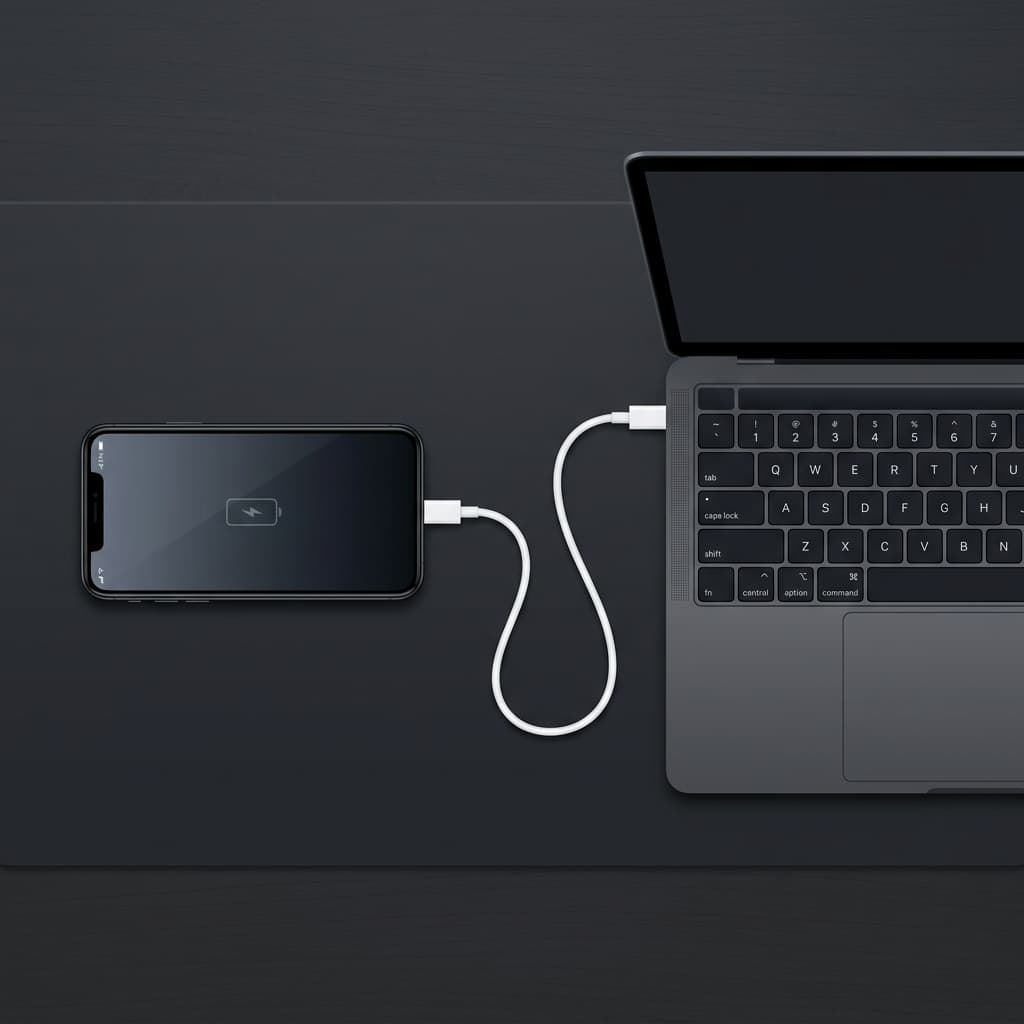
Is your iPhone stuck on the Apple logo, severely lagging, displaying "iPhone is Disabled," or did you forget your lock screen passcode? When a standard restart won't fix the problem, you need to put your device into "Recovery Mode" and perform a Hard Reset using iTunes (or Finder) on your computer. Here is the ultimate step-by-step visual guide to bringing your phone back to life.
What is a Hard Reset?
A hard reset (often referred to as a "restore" in the Apple ecosystem) completely wipes all data and settings from your device and reinstalls the latest version of the iOS operating system. This is the ultimate troubleshooting step for severe software glitches, system crashes, or a forgotten passcode. As Melbourne's trusted phone repair experts at Alimobile, we see devices rendered unusable by software crashes every single day. Mastering this skill can save you a significant amount of time and stress.
Prerequisites
Before diving in, ensure you have the following ready:
- A Computer: A Windows PC (with the latest version of iTunes installed) or a Mac (use Finder for macOS Catalina and newer; use iTunes for older macOS versions).
- An Original or MFi-Certified Cable: A stable connection is crucial. Disconnecting during a restore can cause permanent hardware damage.
- Internet Connection: Your computer needs to be online to download the latest iOS firmware from Apple's servers.
Step-by-Step Instructions
Step 1: Connect Your iPhone to the Computer and Open iTunes
First, plug your iPhone into your computer using your USB cable. If this is your first time connecting, your computer might prompt you to "Trust this computer"—if your phone screen is unresponsive, simply ignore this. Next, open iTunes or Finder on your computer.
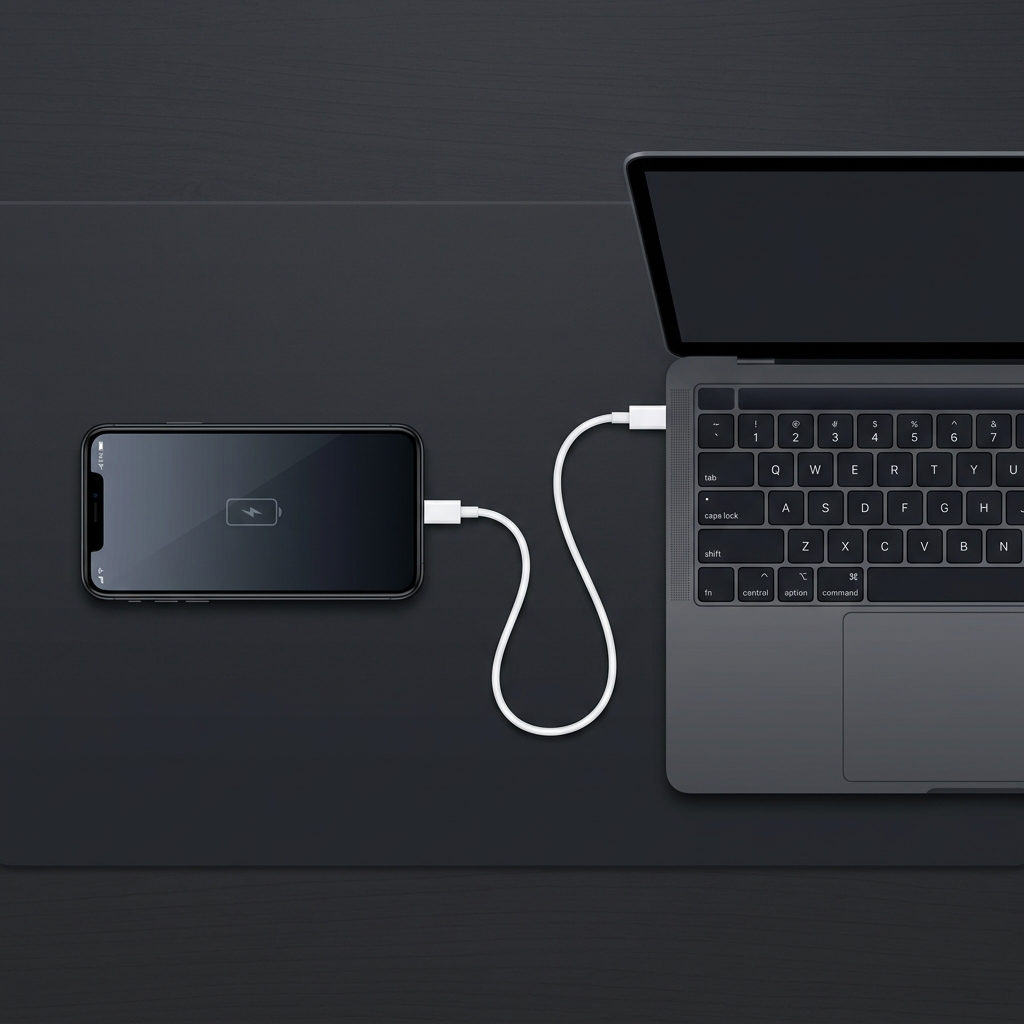 Use a high-quality or original cable to establish a stable connection with your computer.
Step 2: Force Your iPhone into "Recovery Mode"
This is the most critical step. The button combination to enter Recovery Mode depends on your iPhone model. Ensure your phone remains connected to the computer while doing this:
- iPhone 8 and Newer (including iPhone X/11/12/13/14/15 series): Quickly press and release the Volume Up button, quickly press and release the Volume Down button, then press and hold the Side (Power) button until you see the Recovery Mode screen (an icon of a cable pointing to a computer).
- iPhone 7 and 7 Plus: Press and hold both the Side (Power) button and the Volume Down button at the same time. Keep holding them until the Recovery Mode screen appears.
- iPhone 6s and Older: Press and hold both the Home button and the Top/Side Power button at the same time. Keep holding them until you see the Recovery Mode screen.
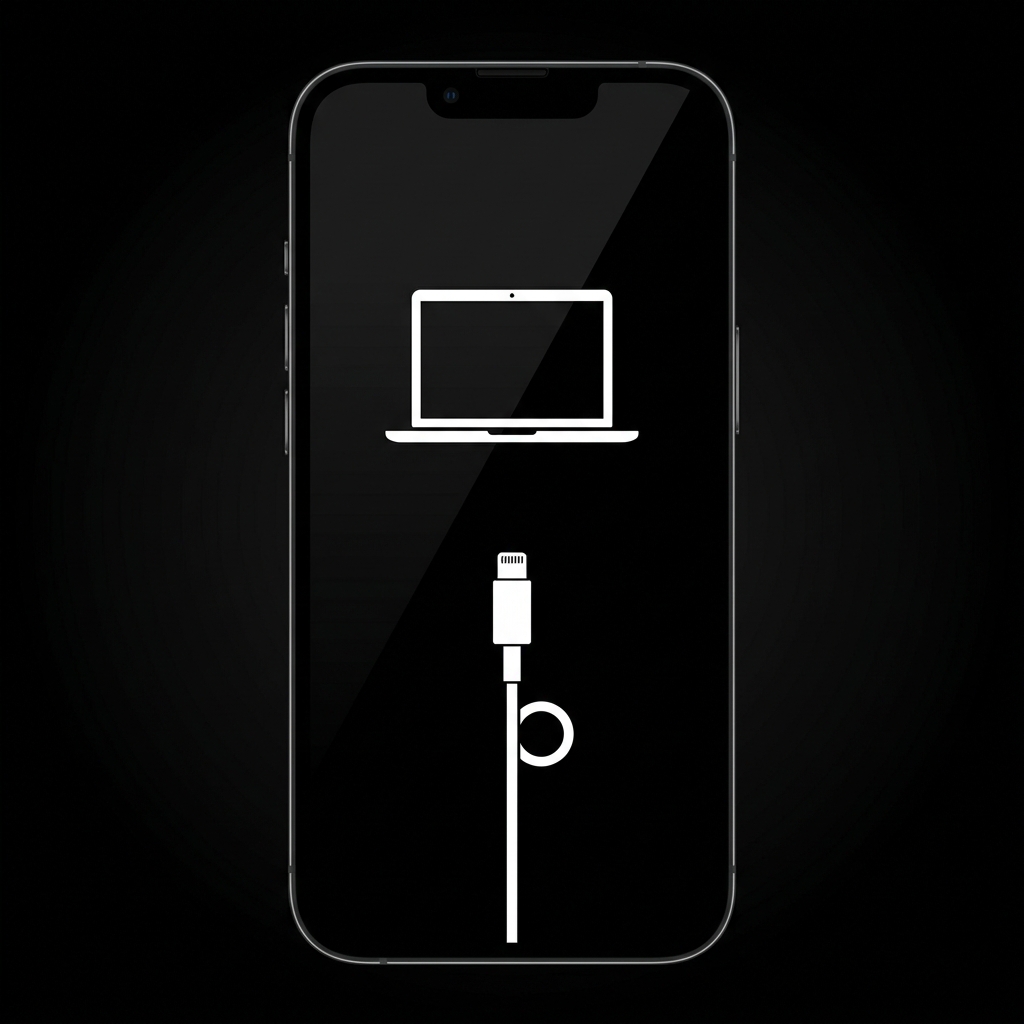 You must hold the buttons until this exact Recovery Mode icon appears on your screen.
Step 3: Select "Restore" on Your Computer
Once your phone successfully enters Recovery Mode, a prompt will pop up on your computer screen stating, "There is a problem with the iPhone that requires it to be updated or restored."
Click Restore.
The computer will warn you that this process will erase all your media and other data. Confirm by clicking Restore and Update.
 When prompted by Finder or iTunes, always select the 'Restore' option to perform a clean factory reset.
iTunes or Finder will now begin downloading the latest iOS software for your device. (Note: If the download takes longer than 15 minutes, your device will automatically exit Recovery Mode. Don't panic—just wait for the download to finish, then repeat Step 2 to re-enter Recovery Mode.)
Step 4: Wait for the Reset to Complete and Set Up Your Phone
When the progress bar finishes, your iPhone will automatically restart. You can now safely unplug the cable.
You will be greeted by the familiar "Hello" setup screen. Follow the on-screen prompts to set up your device. If you have a previous backup on iCloud or your computer, you can choose to restore your data during this setup process.
Frequently Asked Questions (FAQ)
Will a hard reset delete all my data? Yes. A hard reset completely erases all photos, contacts, apps, and settings on your phone. If you do not have a prior backup, this data cannot be recovered.
What if I get an error code (like Error 4013 or Error 9) during the restore? These errors are typically caused by an unstable cable connection, a faulty USB port on the computer, or underlying motherboard hardware failure. We recommend trying a different original Apple cable, switching USB ports, or restarting your computer before trying again.
Expert Tip: Most software issues can be resolved at home using the steps above. However, if you repeatedly encounter unknown error codes during the restore process, or if your device screen remains completely black, you may be dealing with a low-level hardware failure. In that case, you can review iPhone screen repair options as one possible next step and book a proper hardware inspection. If you are in Melbourne, bring your device into Alimobile—our expert technicians are ready to provide comprehensive hardware diagnostics and professional repair services!